
Your satellite receiver,
beautifully on Apple TV.
Enigma2MR (Multi Room) is a modern interface for Enigma2 receivers. Watch live TV with a channel list over the picture, pause and rewind with clicks, search the TV guide, set reminders, record with a long press or a rule, play recordings and manage every box in your home – all with the Siri Remote, in any room.
Everything your receiver can do, made for the big screen.
Your Enigma2 box stays the tuner and the recorder. Enigma2MR turns any Apple TV in your home into a fast, elegant screen for it.
Live TV
The original stream over your home network – no transcoding, no load on the receiver. Channel list over the picture, previews, an info overlay with buttons and a picture-in-picture preview.
Made for the remote
Click up or down for the channel list, left or right to switch channels or to jump a minute in a recording, hold for five. A one-time guide explains every button.
Timeshift
Pause live TV, jump back with clicks (30 seconds, hold for two minutes) or a swipe, and return to live. The buffer lives on Apple TV, so your receiver stays free.
TV guide with mini TV
Your bouquets as configured on the receiver, what is on now on every channel, programme details and artwork – while the running channel keeps playing in a corner.
Reminders
Pick “Remind me” on a programme and Enigma2MR asks two minutes before it starts whether to switch over.
Search
Search the guide of all channels by title, find repeats and similar programmes, and schedule recordings right from the results.
Recordings
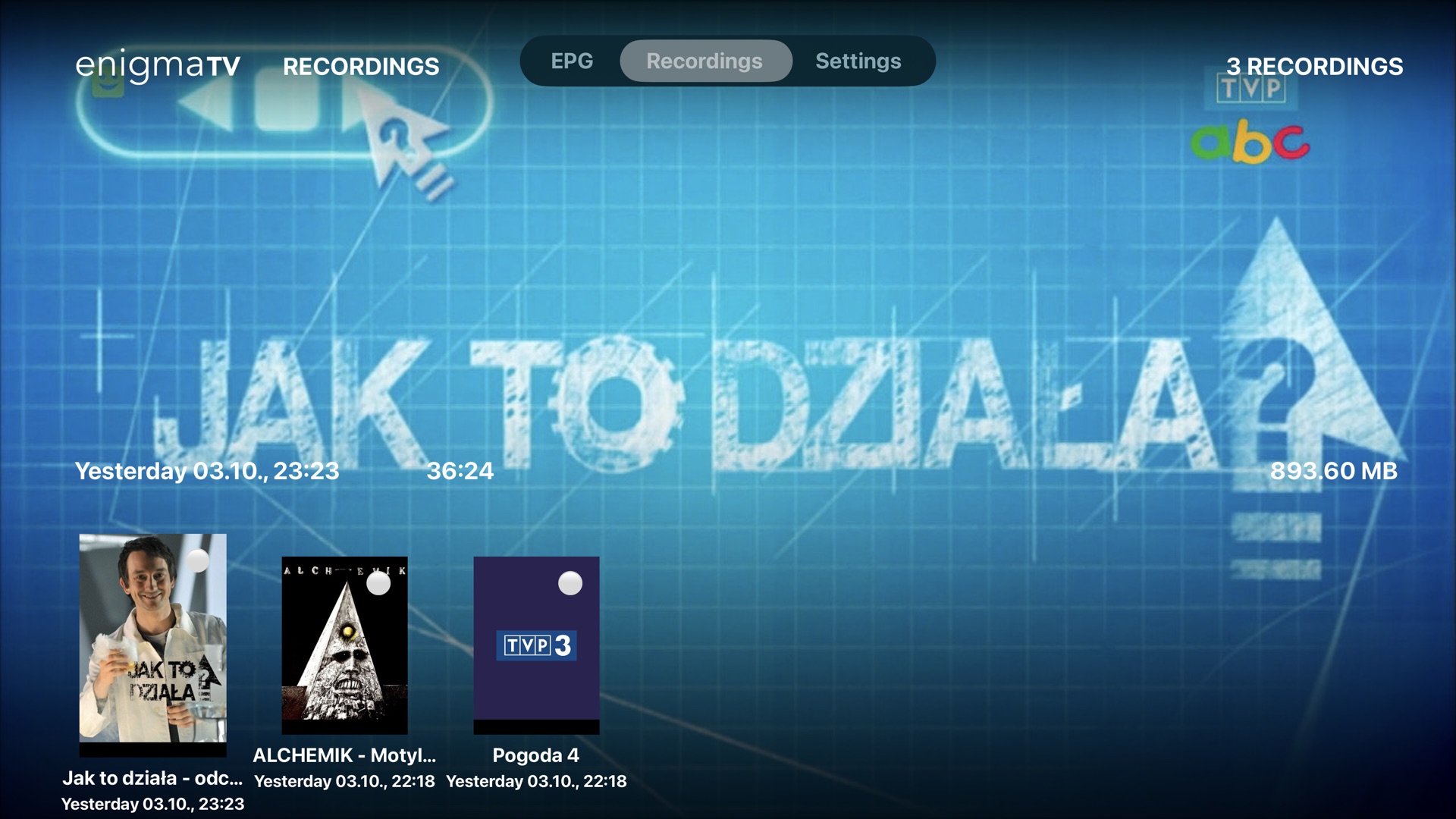
Press and hold in the player to record what is on, or record every episode with one tap (AutoTimer). Recordings are grouped by series and folder; resume them on any Apple TV.
Picture and sound
50 Hz output for European broadcasts, your choice of deinterlacer, audio track and subtitles remembered per channel, a preferred audio language – and lip sync for AirPlay and HomePod.
Radio
Your radio bouquets in the guide and in the channel list, with the station logo and the programme on air.
Rooms
See what your other Apple TVs are playing and the status of every receiver – on or standby, channel, recordings and streams.
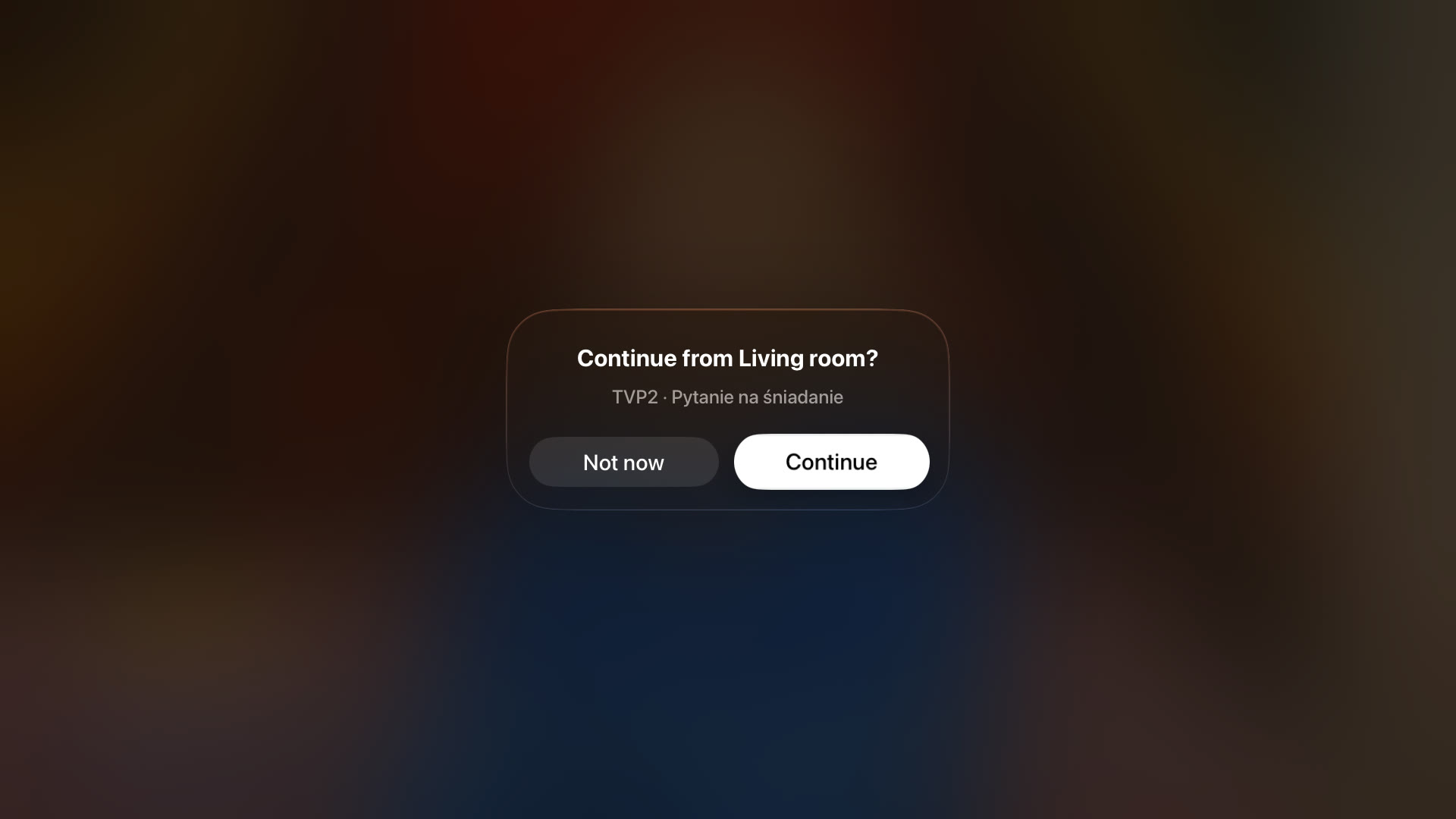
Continue in another room
Move to another room and pick up the channel or recording another Apple TV was just playing – at the same position.
Several receivers
Save every Enigma2 box in your home and switch in Settings → Receivers. Each one keeps its own last channel.
Now Playing
Programme, channel and artwork in Control Center, the Apple TV Remote on iPhone and Siri – with pause and skip.
Receiver settings
Status, signal, standby, sleep timer, reboot – and the important settings of your box, from the sofa.
English, Polish, German
Enigma2MR speaks three languages and follows the language set on your Apple TV.
Private by design
Enigma2MR talks directly to your receivers on your local network. No account, no server of ours in between, no tracking.
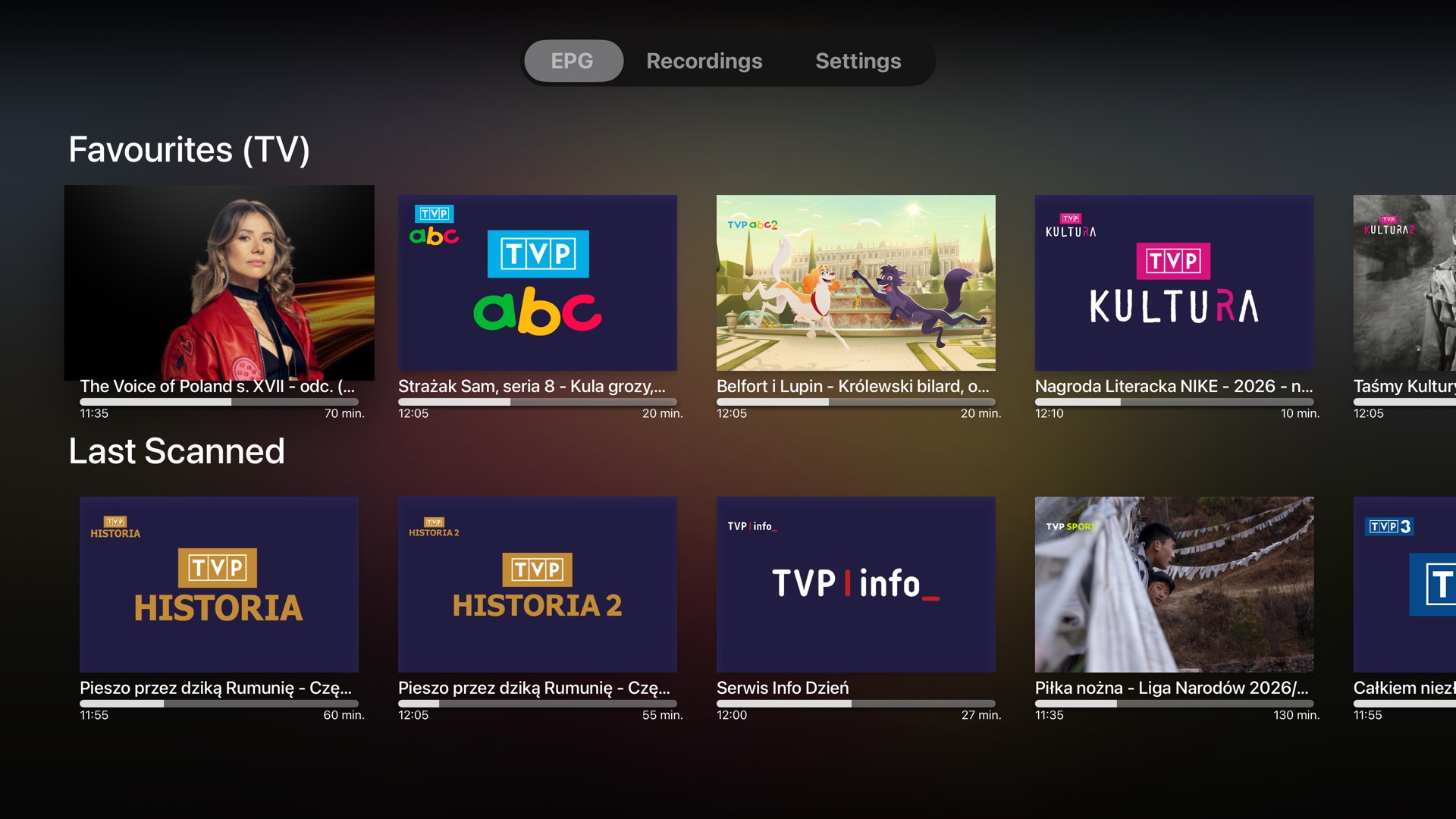
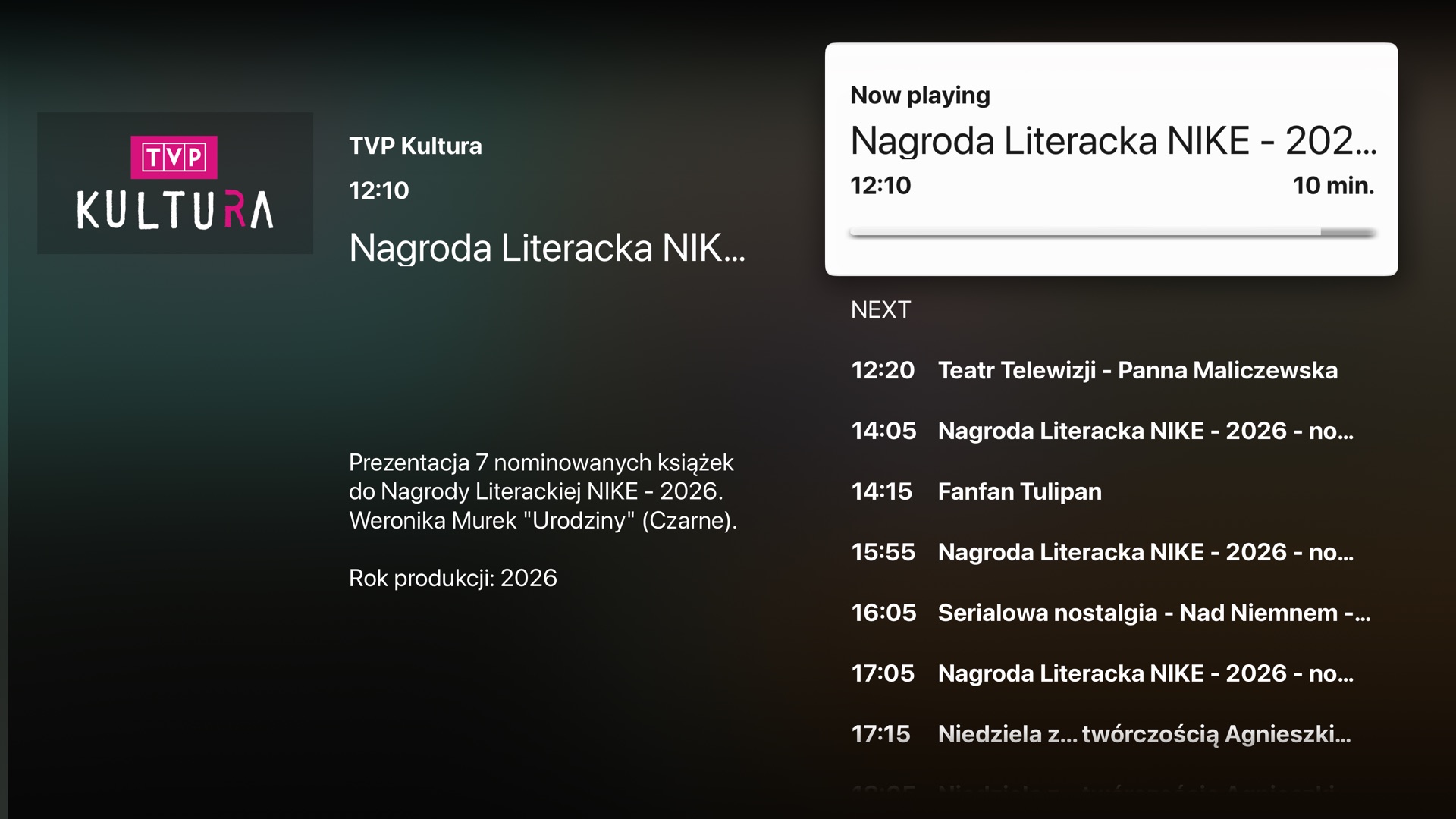
See what's on – on every channel.
The guide shows your bouquets exactly as on the receiver, with the programme on air, its progress and artwork.
- All bouquets and channels from your receiver
- Now and next for every channel
- Channel logos from your receiver's picons, and programme artwork
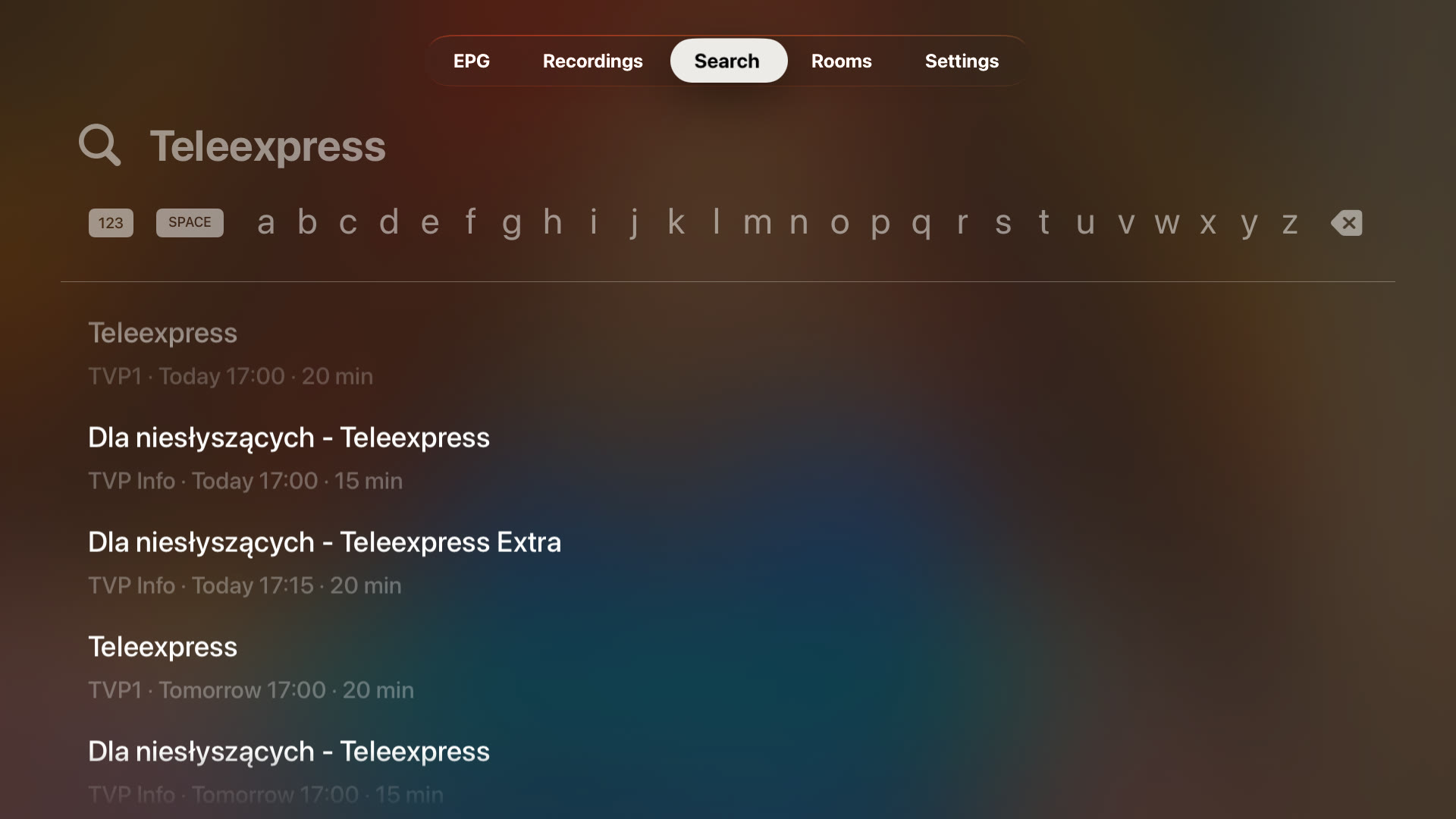
Find it in the guide.
Type a title and Enigma2MR searches the TV guide of every channel on your receiver – then shows repeats and similar programmes.
- Search all channels by programme title
- Repeats and similar programmes for any result
- Schedule a recording straight from the results
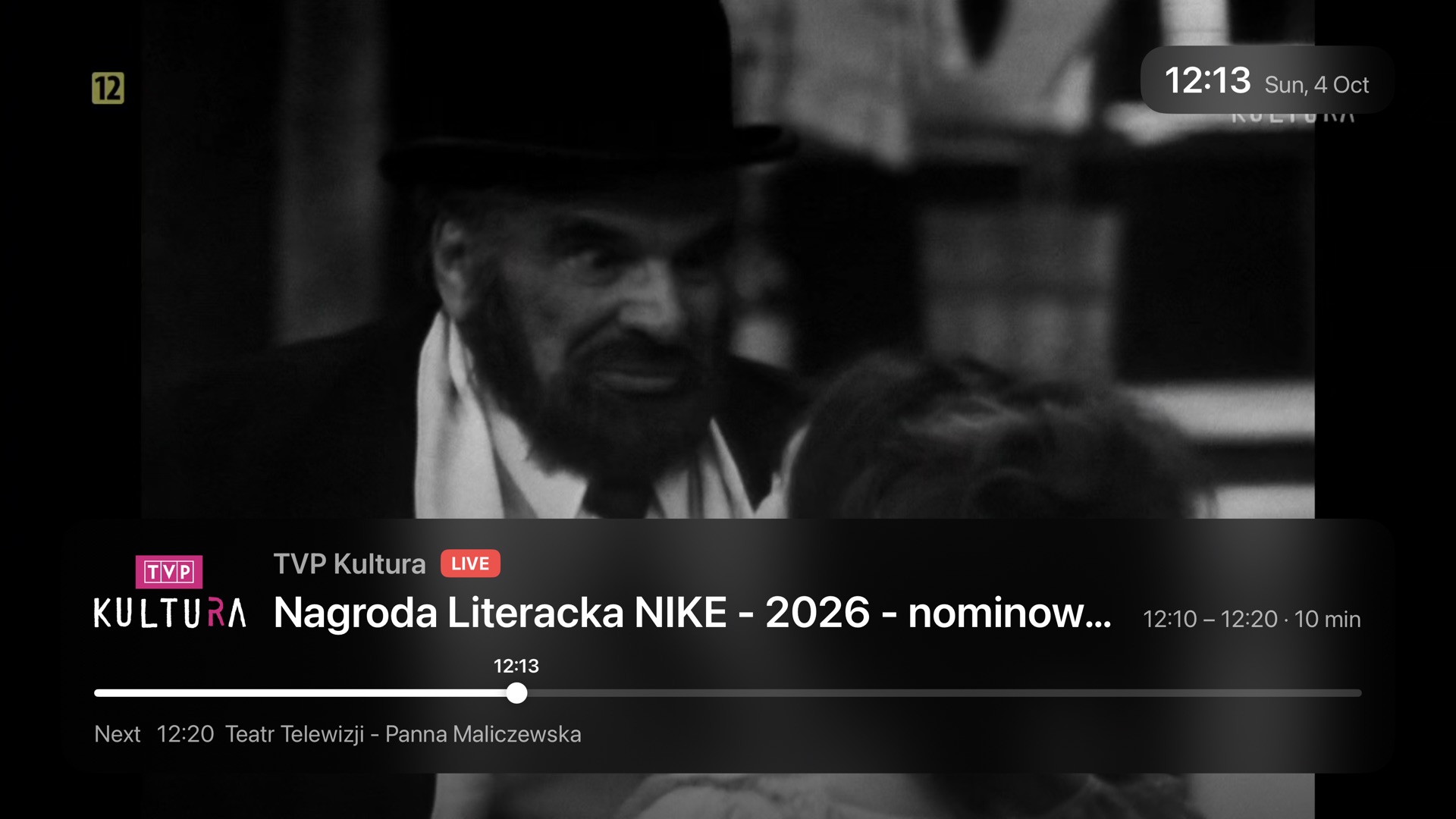
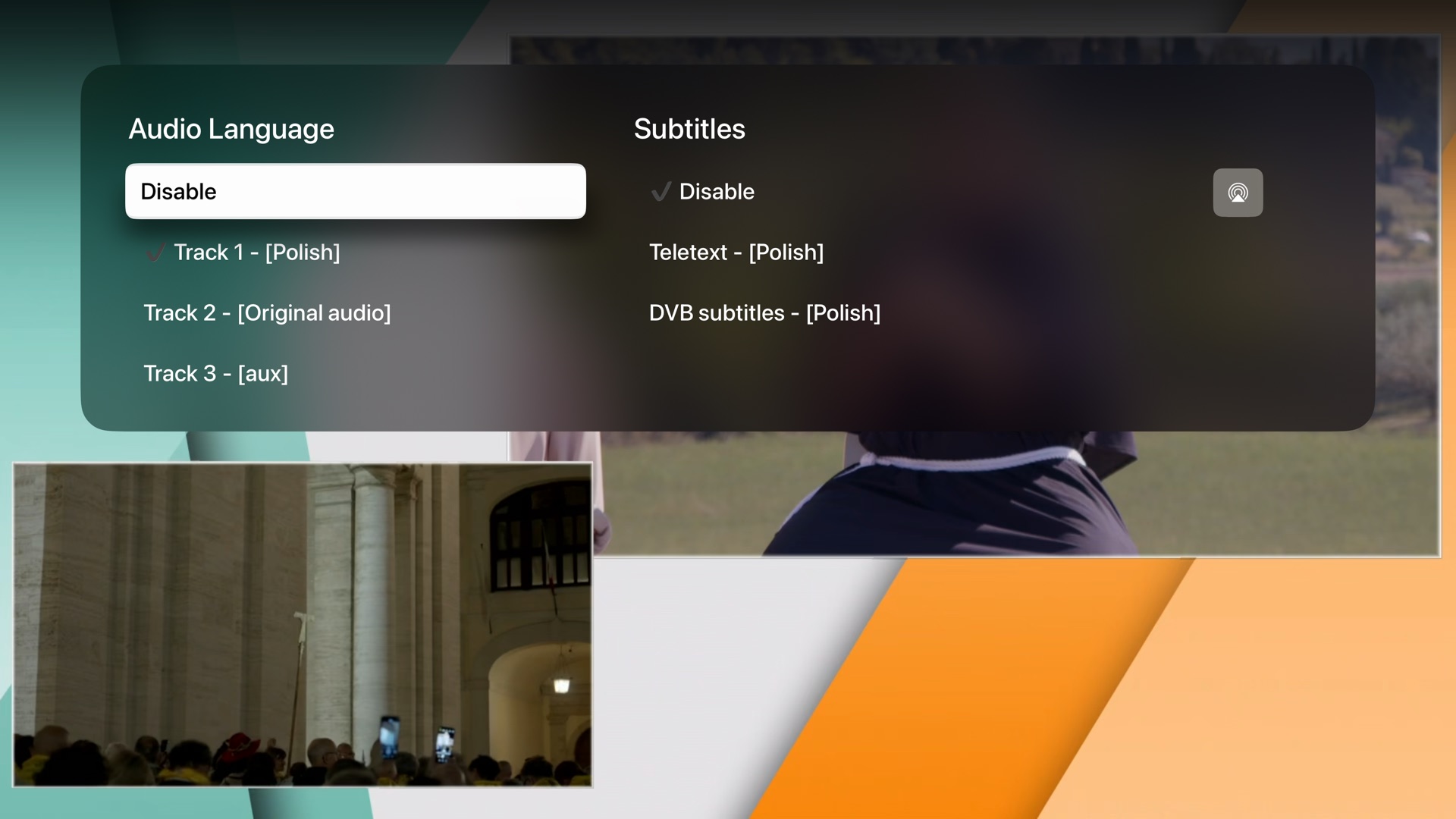
Live TV with a glance at the details – and the buttons you need.
A Liquid Glass overlay shows the channel, the programme, its progress and what is next – and gets out of the way.
- Audio track and subtitle selection
- Channel up/down with a preview of neighbouring channels
- Programme info in Control Center, the Apple TV Remote on iPhone and Siri
- Picks up where you left off on launch
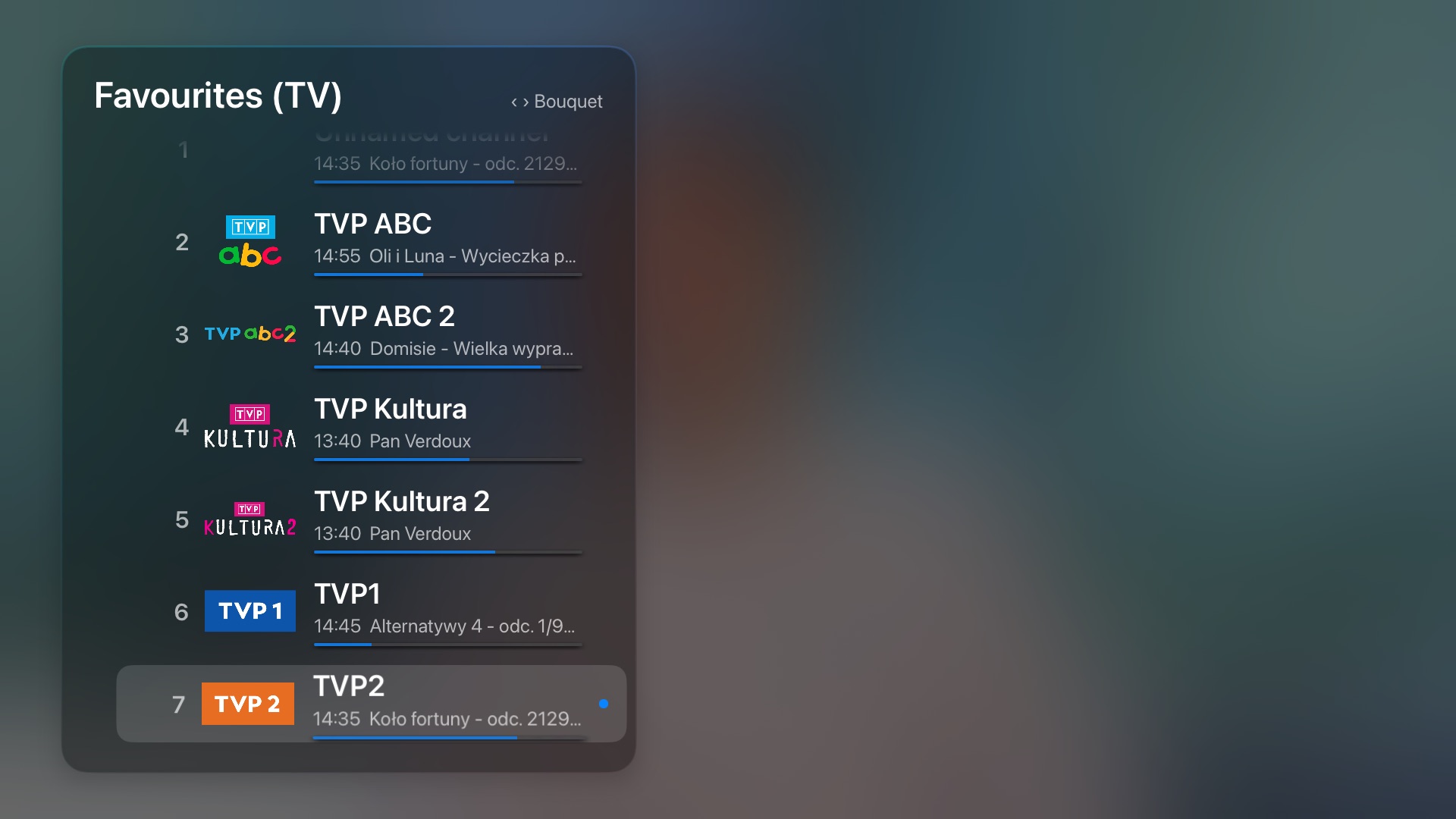
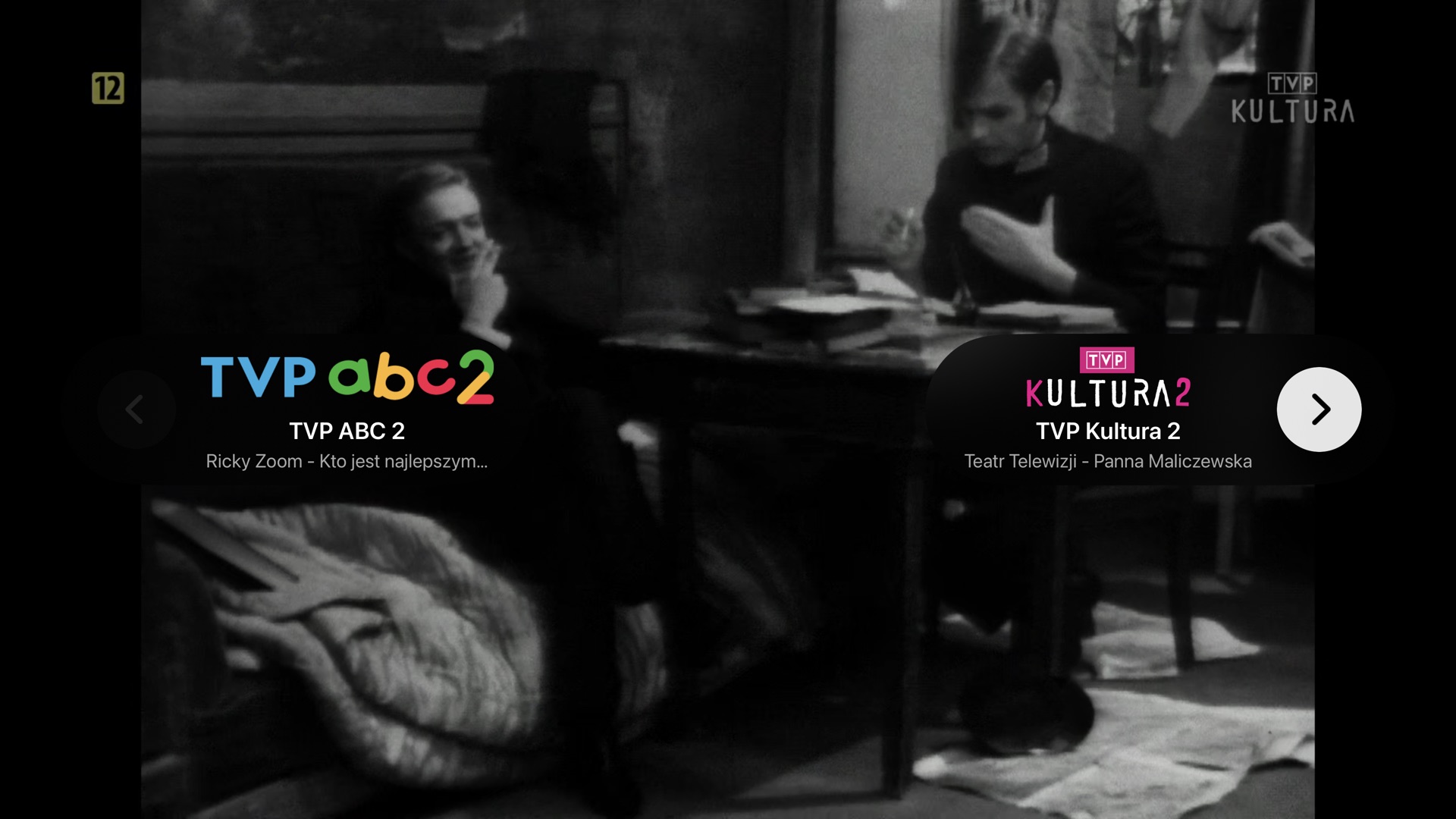
The channel list, one click away.
Click up or down on the remote and the channels of the current bouquet appear over the picture – numbers, logos, what is on now and how far it is.
- Click left or right to move to the next bouquet, radio bouquets included
- Channel numbers as on your receiver
- Swipe up instead for the info overlay: timeline, next programme and buttons for audio, channel list and recording
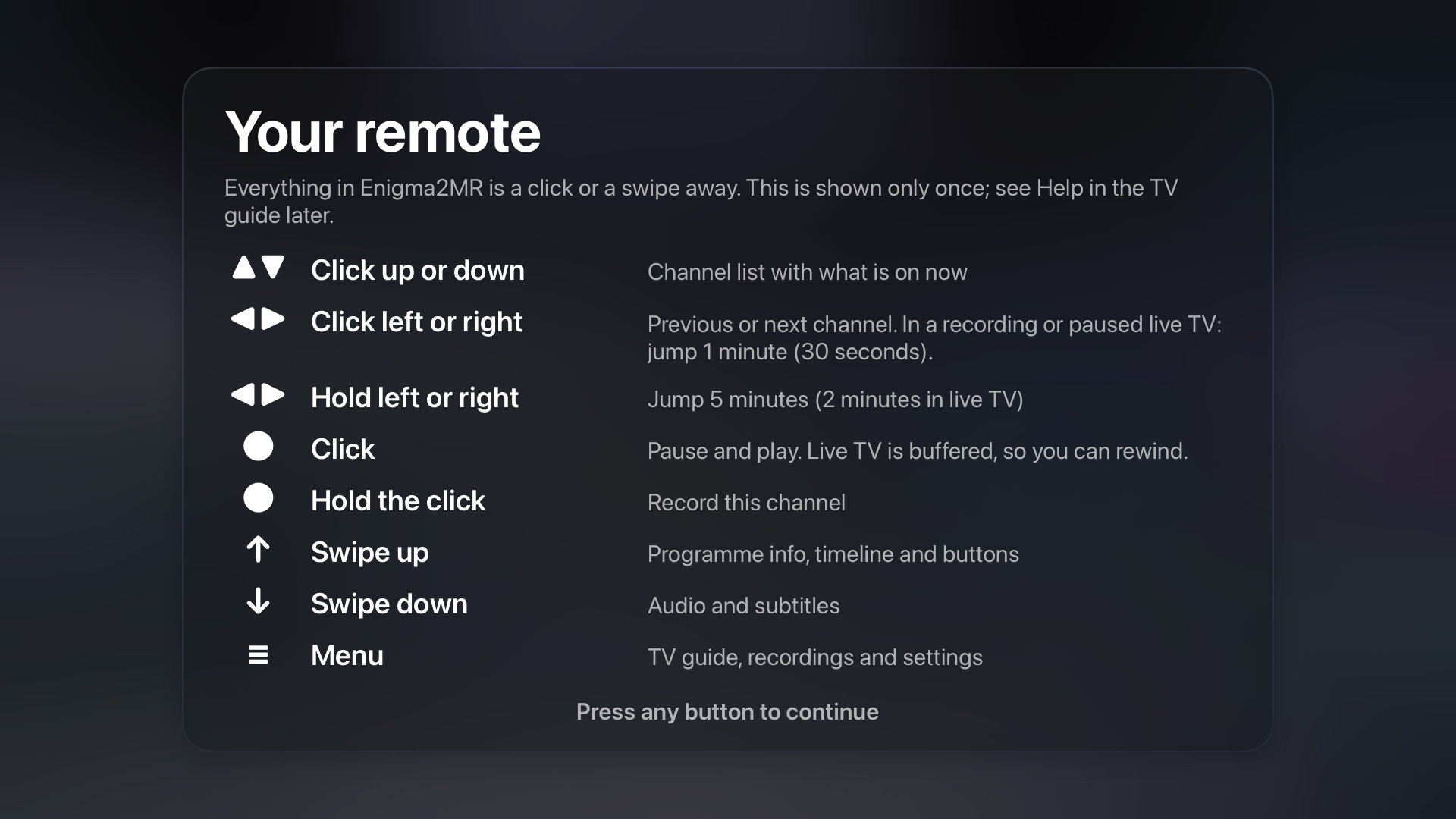
Every button explained – once.
The first time something plays, Enigma2MR shows what each click, hold and swipe does. After that it stays out of the way.
- Click left or right: previous or next channel; in a recording or paused live TV a one-minute jump (30 seconds), hold for five minutes
- Click: pause and play – live TV is buffered, so you can rewind
- Hold the click to record, swipe down for audio and subtitles, Menu for the guide
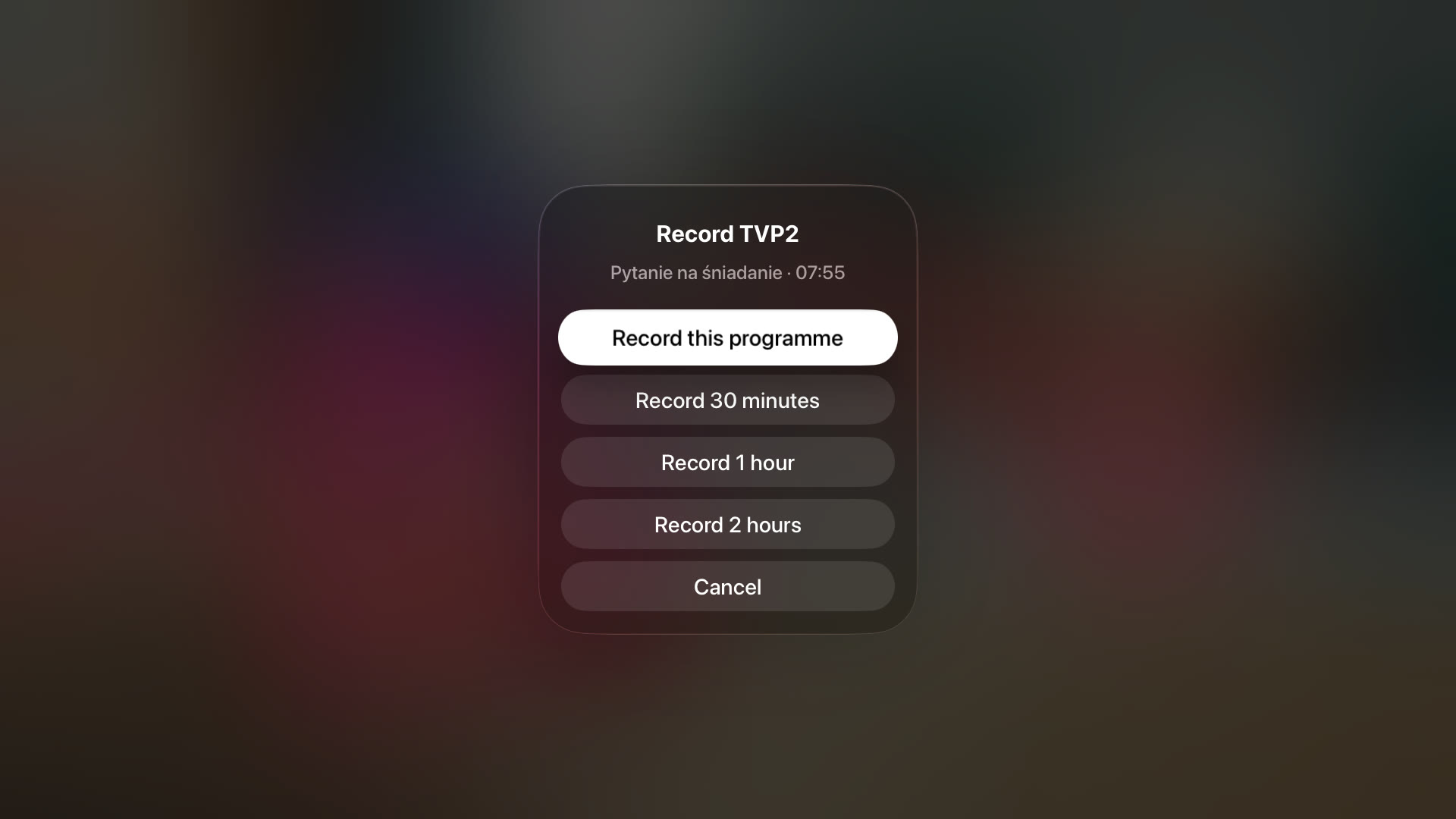
Record with a long press.
Press and hold the centre of the touch surface (Select) while watching, and your receiver records – the current programme or a fixed time.
- Record the programme on air, or the next 30 minutes, 1 hour or 2 hours
- A REC badge shows while the channel is recording
- Stop a running recording from the same menu
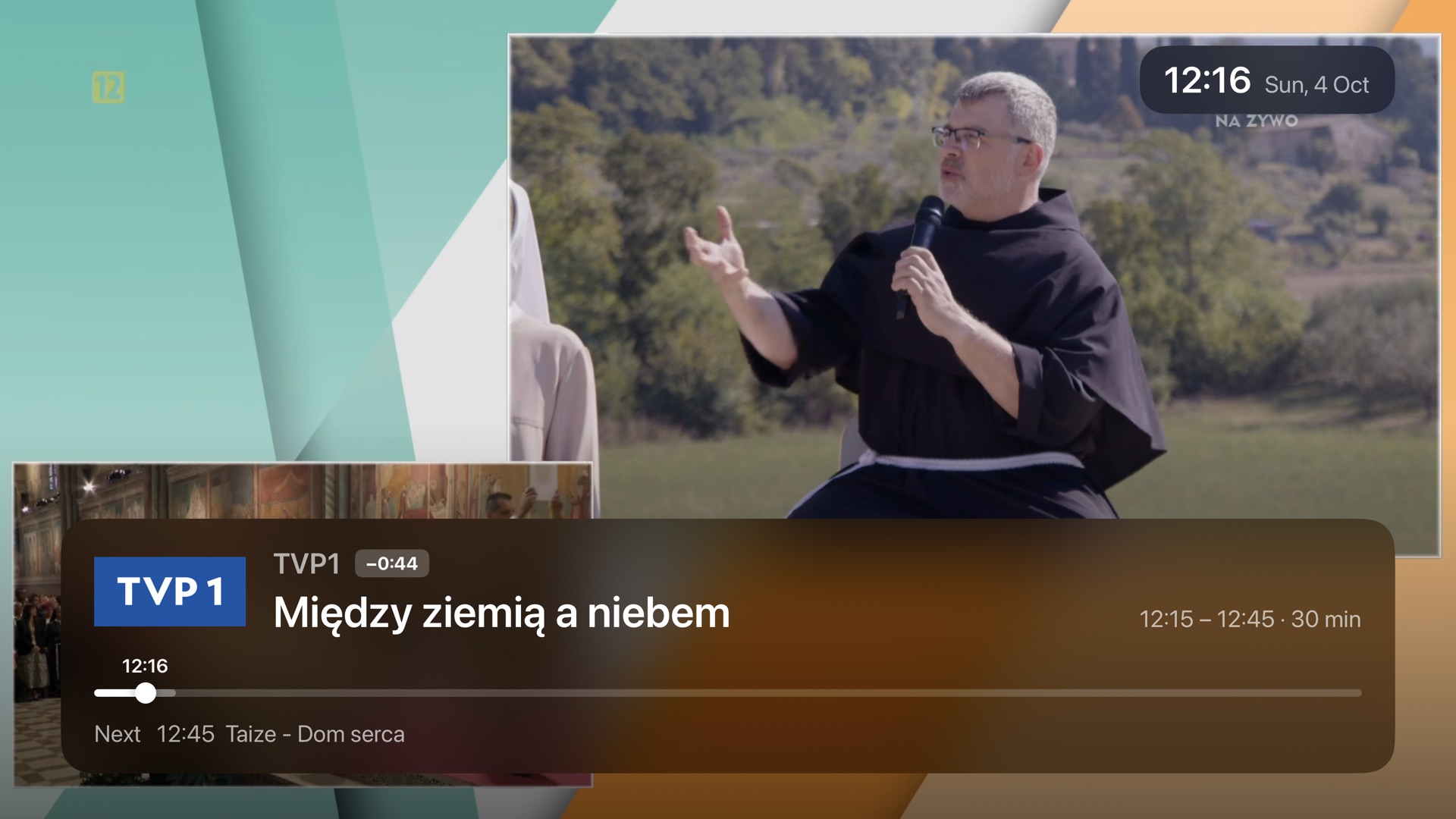
Pause live TV. Really.
Timeshift buffers the channel on Apple TV. Pause for the doorbell, rewind a goal, then swipe back to live.
- Buffer of 30 minutes up to 3 hours
- Instant seeking to the nearest keyframe
- Uses a single stream from your receiver
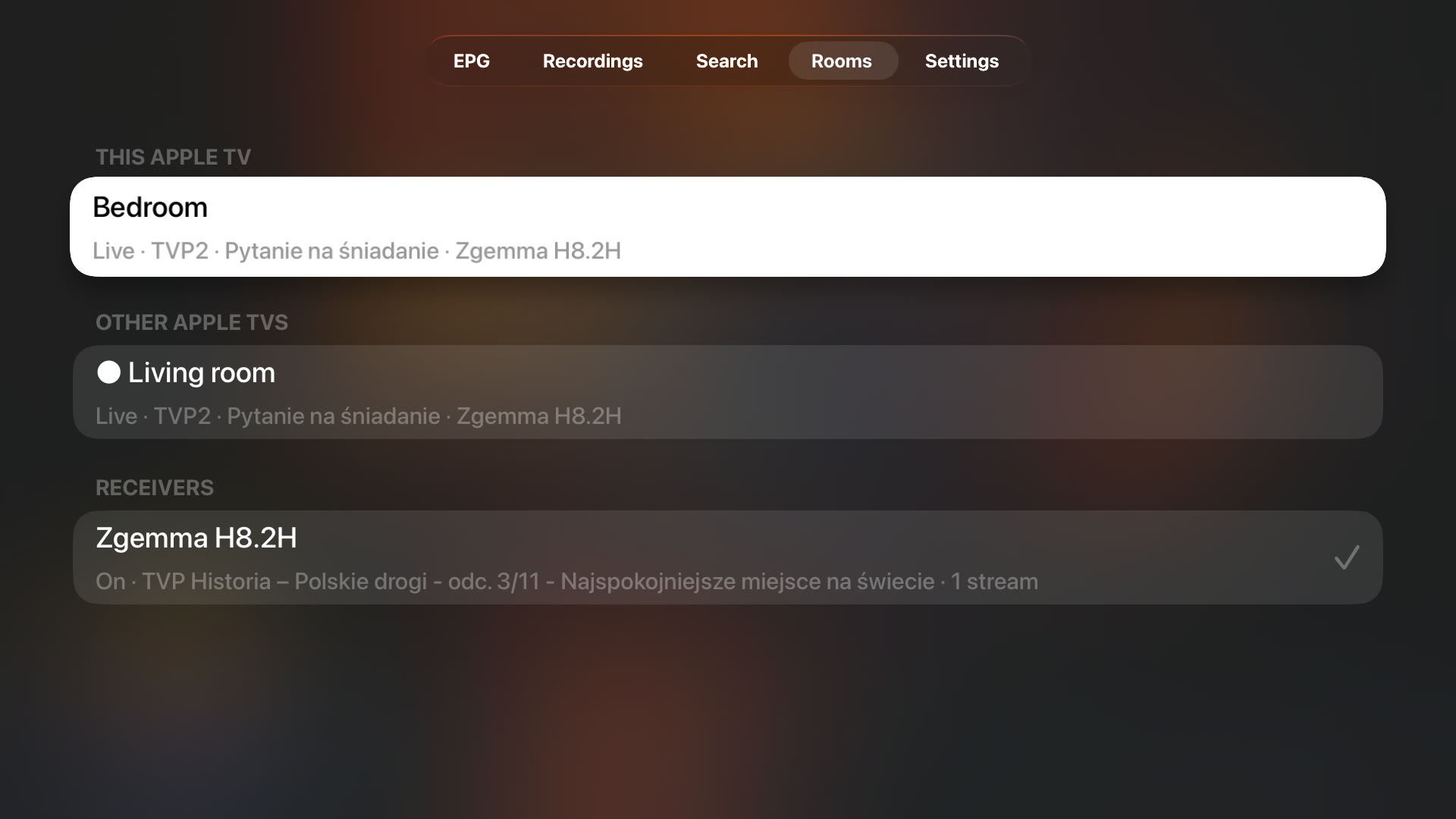
Every room at a glance.
The Rooms tab shows what the other Apple TVs in your home are playing and what each receiver is doing – and lets you carry on where another room left off.
- What each Apple TV on your iCloud account is playing
- Each receiver: on or standby, current channel, recordings, number of streams
- Continue in another room: same receiver, same channel or the same position in a recording
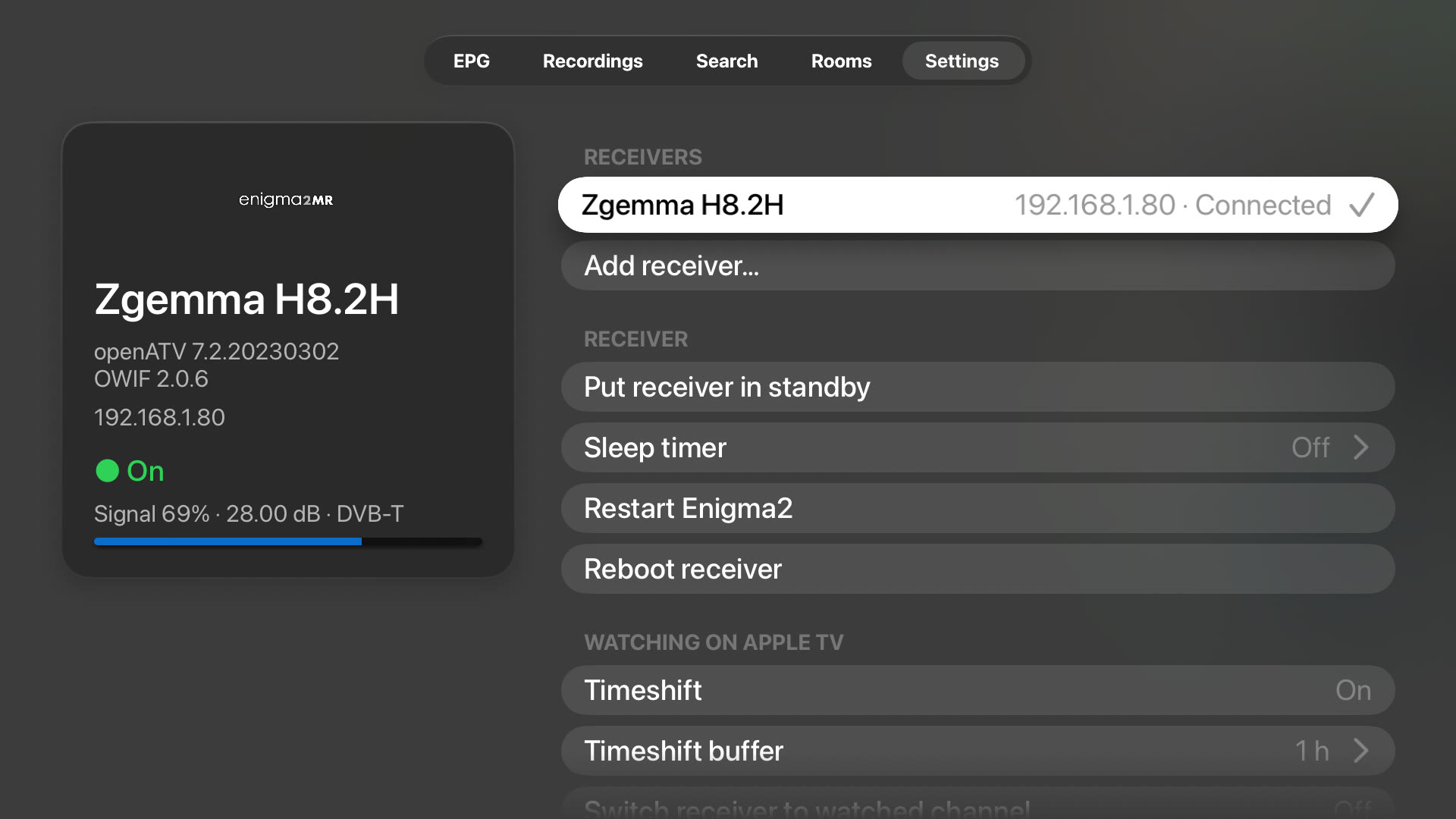
One app for every box in the house.
Living room, bedroom, office: save each Enigma2 receiver once and switch between them in Settings → Receivers.
- Receivers found automatically on your network
- Each receiver keeps its own last channel
- Switch from Settings or from the Rooms tab
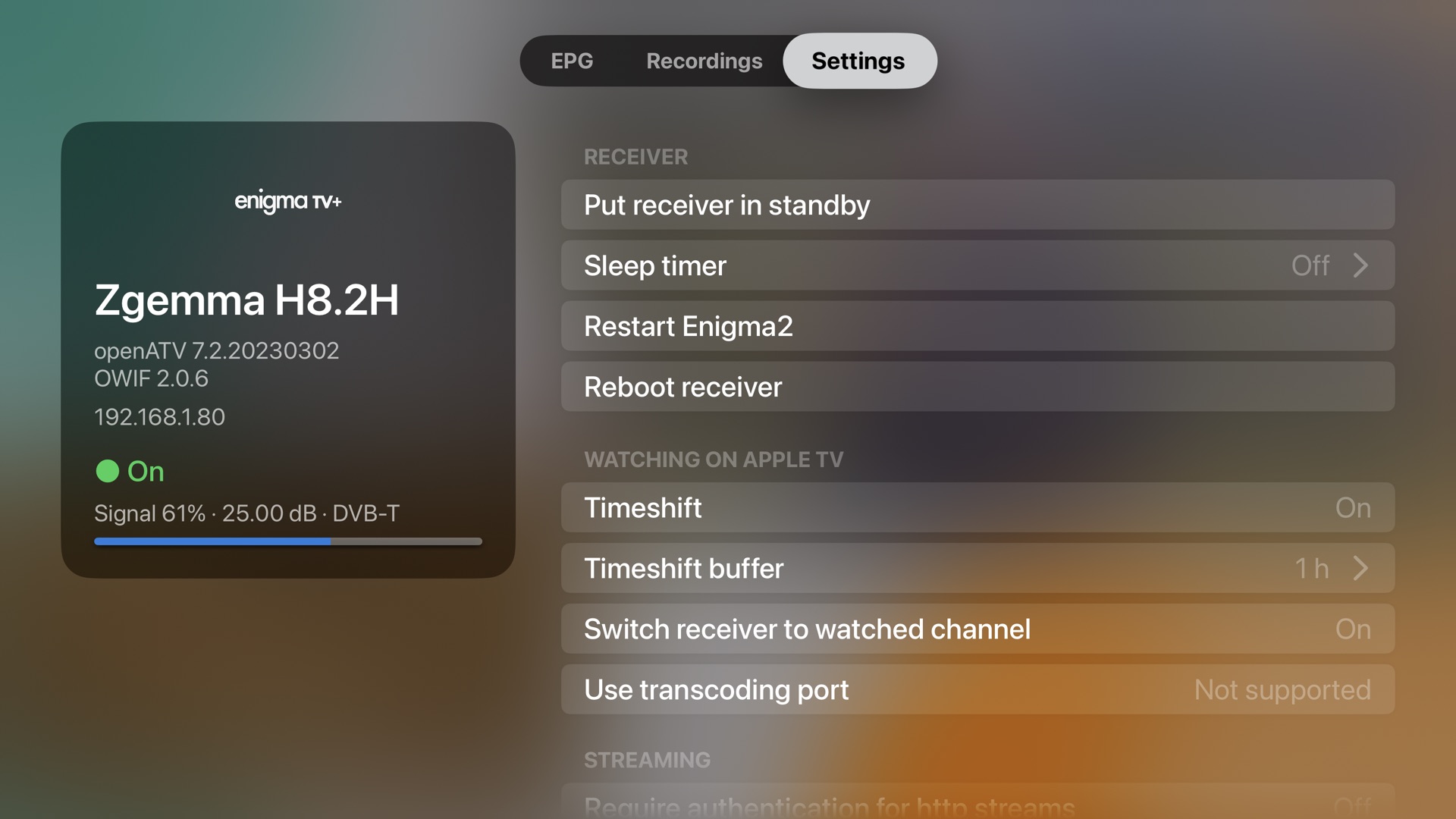
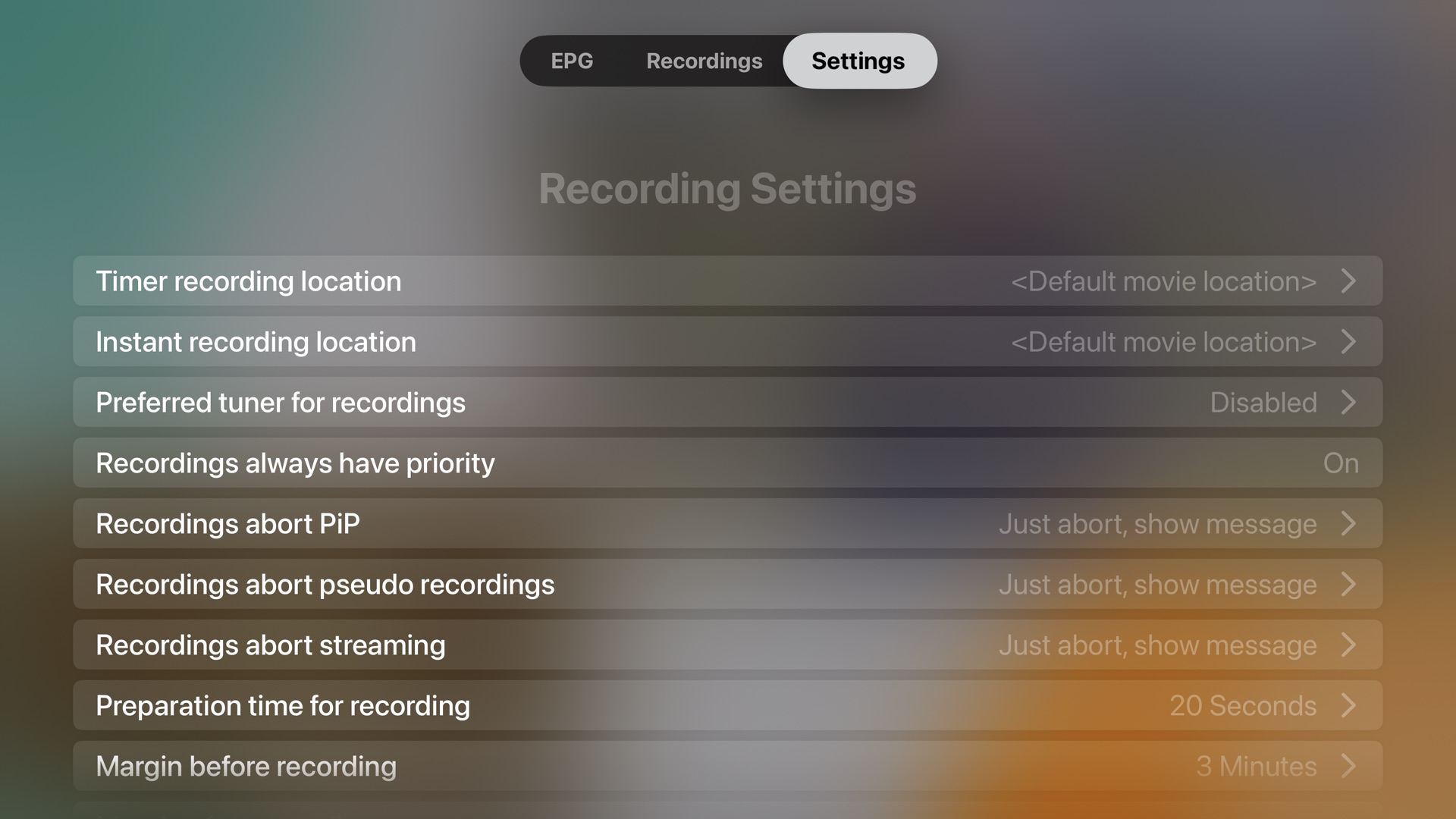
Your receiver, at your fingertips.
See model, software and signal at a glance, and change the settings that matter without switching the TV input.
- Standby, wake-up, sleep timer, restart and reboot
- Recording margins, streaming and time settings
- Every settings section the receiver exposes
Set up in under a minute.
No IP addresses to type. Enigma2MR finds your receiver on the network by itself.
Install
Get Enigma2MR from the App Store on your Apple TV.
Discover
On first launch, Enigma2MR scans your local network for Enigma2 receivers with OpenWebif.
Select
Pick your receiver – or add every box in your home. Channel lists and the TV guide load straight away.
Watch
Choose a channel – live TV starts within seconds.
Requirements
- Apple TV with tvOS 16.2 or later (the Liquid Glass design requires tvOS 26)
- A receiver running Enigma2 with OpenWebif – included in OpenATV, OpenPLi, OpenViX, OpenBH and most other images
- Receiver and Apple TV on the same local network; a wired connection for the receiver is recommended
- Reception or a subscription for the channels you want to watch
- For Rooms and continuing in another room: Apple TVs signed in to the same iCloud account
Tested with
Zgemma H8.2H (DVB-S2 + DVB-T2/C) with OpenATV 7.2 and OpenWebif 2.0.6, on Apple TV 4K (1st and 3rd generation) with tvOS 26.
Looking for a receiver? Read our overview of Enigma2 receivers.
Screenshots
Frequently asked questions
Does Enigma2MR include TV channels?
No. Enigma2MR shows what your own receiver receives – free-to-air channels or channels from your subscription. It does not provide or sell any TV content.
Which receivers are supported?
Any receiver running Enigma2 with the OpenWebif web interface, which is installed by default on OpenATV, OpenPLi, OpenViX, OpenBH and most other Enigma2 images. See the receiver overview for popular models.
Can I watch when I'm away from home?
No. Enigma2MR is designed for your home network: Apple TV and the receiver must be on the same local network. The Rooms tab uses your iCloud account only to share what each Apple TV is playing – the picture always comes from the receiver in your home.
Can I use more than one receiver?
Yes. Add every Enigma2 receiver in your home and switch between them in Settings → Receivers or from the Rooms tab. Each receiver remembers its own last channel.
What is the Rooms tab?
It lists your other Apple TVs with Enigma2MR on the same iCloud account and what they are playing, plus the status of each receiver. When another Apple TV was just playing something, Enigma2MR offers to continue it here – the same channel, or the recording at the same position.
How many Apple TVs can watch at the same time?
Each stream needs a free tuner (or demodulator) on the receiver. Receivers with two tuners or an FBC tuner can feed several Apple TVs at once, provided the channels can be received together. The Rooms tab shows how many streams each receiver is serving.
Do encrypted channels work?
If your receiver can decrypt a channel (e.g. with a CI module and smart card) and streaming of decrypted channels is enabled on the receiver, Enigma2MR plays it like any other channel.
My receiver needs a password.
Enter the user name and password in Settings → Connection. They are sent only to your receiver.
Which languages does Enigma2MR support?
English, Polish and German. The app follows the language of your Apple TV. Programme titles and descriptions come from your receiver's TV guide, so they stay in the language of the broadcast.
Camera pans judder. What can I do?
European broadcasts run at 50 Hz while Apple TV outputs 60 Hz by default. Turn on Match frame rate (50 Hz) in Enigma2MR → Settings → Picture and sound, and enable “Match Frame Rate” in the Apple TV’s Video and Audio settings. For interlaced channels you can also pick a deinterlacer there.
The sound on my HomePod or AirPlay speaker is out of sync.
Wireless speakers play the sound a little later than the picture. Enigma2MR compensates the delay the system reports; if it is still off, adjust Audio sync in Settings → Picture and sound in quarter-second steps.
Can I record a whole series?
Yes, if the AutoTimer plugin is installed on your receiver (it is on most images). Open a programme in the guide and choose Record every episode. The rule appears under Recordings, where you can remove it again.
Do reminders work when the app is closed?
tvOS shows no notifications for apps, so reminders appear while Enigma2MR is running – also while you watch another channel or browse the guide. Two minutes before the start you are asked whether to switch over.
Why does Enigma2MR ask for Local Network access?
To find your receiver and talk to it. Enigma2MR connects only to devices on your own network (plus HTTPS requests for artwork and logos). Read the privacy policy.